Your notebook is a place for your own notes in this course. It lives in Notion, which is note-taking software that you can search.
Use it for the things you do not want to forget:
- what you tried, and what happened
- a screenshot of your game when it does something new
- a piece of code you want to find again
- a question to ask me
Your notebook is yours. Nothing in it is graded. Write in whatever way helps you.
Find the email from Notion
I have already made a notebook page for you, with your name on it, and Notion has sent you an email about it.
-
Open your LCS email and look for a message from Notion. It will say either that you have been invited to a page, or that I mentioned you in one. Check your junk folder if you do not see it.
-
In that email, click the button that opens the page, or the link to the page you were mentioned in.
-
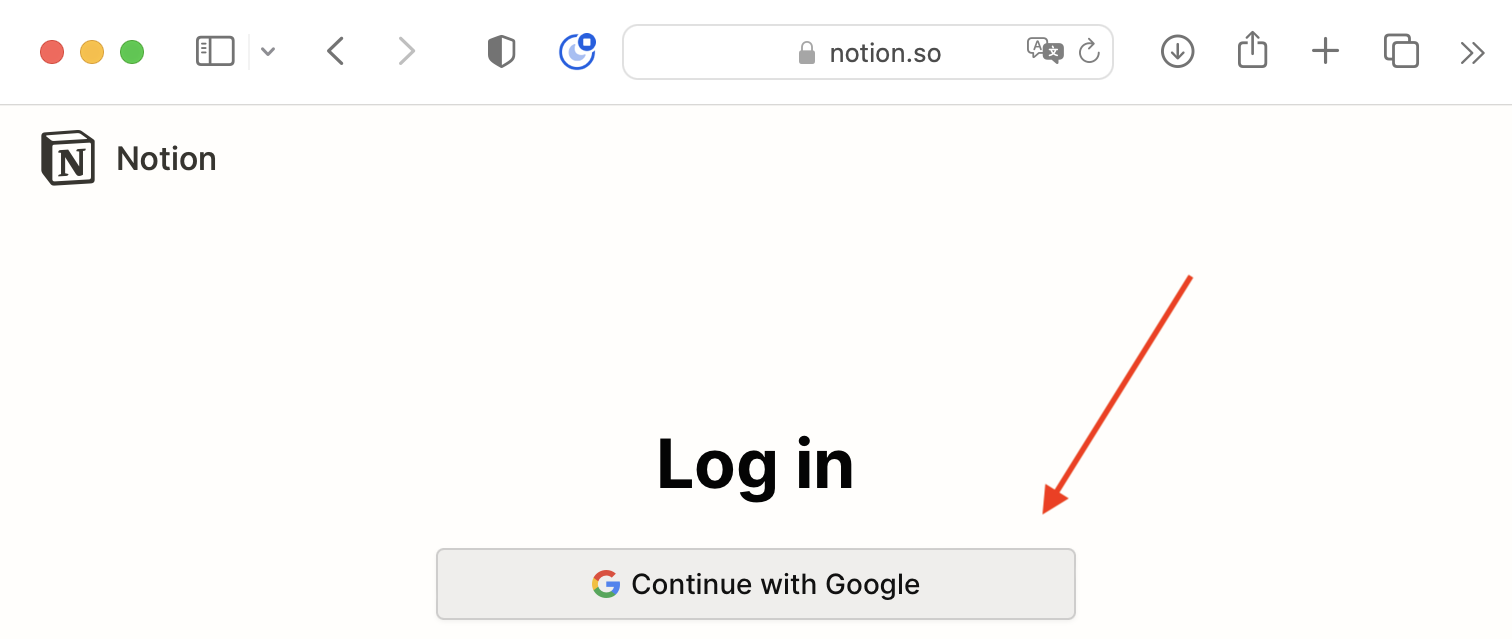
If Notion asks you to log in, choose Continue with Google, and be sure to pick your LCS Google account, not any personal account you might use with Google:
The page that opens is your notebook.
If you cannot find the email
Log in to Notion directly: visit the Notion website and choose Continue with Google, with your LCS account.
When you first log in, you may be in your own personal teamspace. Switch to the Lakefield Computer Studies Program teamspace, and open the notebook page with your name on it. This short video shows how to switch teamspaces:
Make a bookmark
You will open your notebook often. While it is open in your browser, press Command-D to bookmark it. Give the bookmark a short name, like Notebook.
Your first note
Add a short note today. For example:
- Today’s date, and the name of the game you downloaded.
- One thing you changed in the game, and what happened.
- A screenshot of your game running. Screenshots and Screen Recordings shows how to paste one straight into Notion.
Test of success
- You can open the notebook page I made for you from your bookmark.
- Your notebook has one note in it, with a screenshot of your game.