At the whiteboards last class, you found everything the Guessing Game remembers. Each of those things has a name, a value, and a type. This page puts words to what you found and lets you test them in your DataTypes playground. At the end of this page, you will put a constant and a variable into your own game.
Constants and variables
A variable is a name that holds one value at a time. The value can change while the program runs.
A constant is a name whose value is set once and then never changes.
In Swift, let makes a constant and var makes a variable:
let lowestNumber: Int = 1var guessCount: Int = 0
In our games, the things the screen shows are written @State var. That is still a variable. The @State part tells SwiftUI to redraw the screen whenever the value changes. More on that when we look at the screen.
Use let unless you know the value must change. If you are wrong, Swift tells you:
cannot assign to value: 'highestNumber' is a 'let' constant
Types
The word after the colon is the type. It says what kind of value the name holds.
Type
Holds
Examples
In the Guessing Game
Int
a whole number, positive or negative
0, 42, -10
guess, guessCount
Double
a number with a decimal point
3.5, 0.99, -2.0
not used yet
String
text, always in quotation marks
"Yes!", "star.circle.fill", "7"
message, messageSymbol
Bool
a yes-or-no answer: true or false
true, false
gameIsOver
Our games also use Color, which holds a colour, such as Color.indigo.
A name can only ever hold its own type. Put a String where an Int belongs, and Swift will not run your game:
cannot convert value of type 'String' to specified type 'Int'
How big can an Int be?
On your Mac and your iPhone, an Int is stored in 64 bits. One bit says whether the number is positive or negative, which leaves 63 bits for the size. So an Int can hold any whole number from -9,223,372,036,854,775,808 to 9,223,372,036,854,775,807. That is enough for any score you will ever need.
Predict, then run
Every value has a type, and the type decides what arithmetic does to it. That is the idea to test now, in your DataTypes playground from Your First Playground.
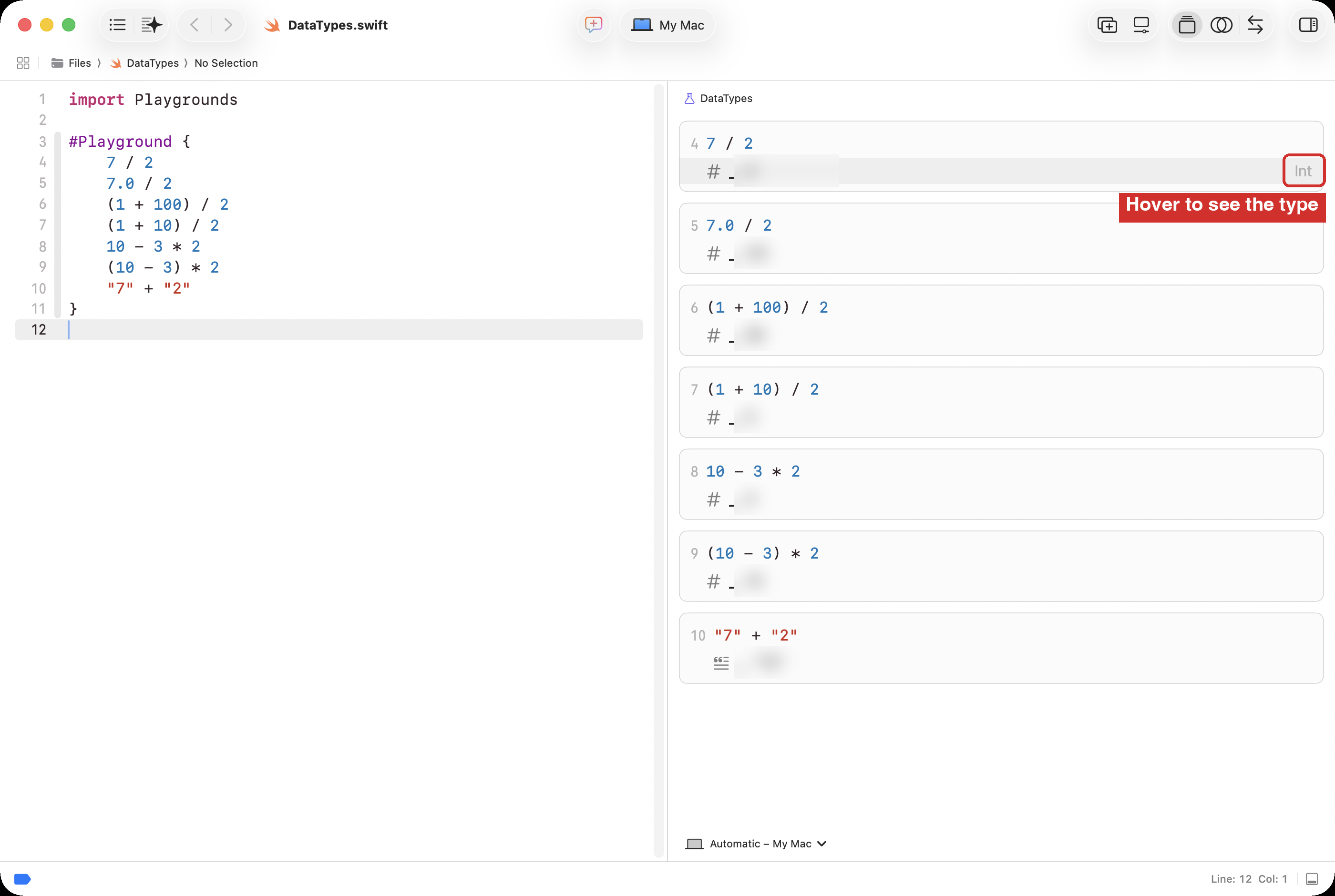
A playground shows the value each line works out, and the way it is written tells you its type: a whole number, a number with a decimal point, or text in quotation marks. So for each expression below, predict both. Write all seven predictions down first, because the playground shows the output of code you write as soon as you write it.
Expression
Value you predict
Data type you predict
7 / 2
7.0 / 2
(1 + 100) / 2
(1 + 10) / 2
10 - 3 * 2
(10 - 3) * 2
"7" + "2"
Then put the seven expressions between the braces of #Playground { }. Use the copy button in the block’s top right corner, as you did in Your First Playground:
Click the copy button on that block (top-right corner).
In your DataTypes playground, delete whatever is between the braces, so the cursor sits on an empty line inside #Playground { }.
Press Command-V to paste.
NOTE
No print statement is needed here: a playground shows the value of any line on its own.
Compare the results in the playground with your table of predictions, line by line. To see the data type’s name, hover the mouse over a result line: the data type appears at right.
Yellow warnings beside the lines?
Xcode may show a warning:
Result of operator ’/’ is unused
…beside the bare lines.
A warning is advice, not an error, and the playground still runs.
Here, Xcode is only pointing out that it computed a value and did nothing with it, which is exactly what you meant to do.
Later today the warnings will disappear on their own – when you put a value into a variable or use a print statement.
Once you’ve made your predictions, and run your code, use the solution below to check your work.
SOLUTION
Expression
Value
Type
Why
7 / 2
3
Int
Two Int values give an Int. The .5 is dropped, not rounded.
7.0 / 2
3.5
Double
A number with a decimal point is a Double, so the answer is too.
(1 + 100) / 2
50
Int
This is where the guess starts.
(1 + 10) / 2
5
Int
Where the guess starts when the range is 1 to 10, one of the first day’s changes.
10 - 3 * 2
4
Int
Multiplication comes before subtraction.
(10 - 3) * 2
14
Int
Brackets come first.
"7" + "2"
72
String
Two String values are joined, not added. The result is text, so it is "72", not the number 72.
Three things to take away. Dividing two Int values gives an Int, and whatever is after the decimal point is thrown away. Put a decimal point in one of the numbers and the whole calculation becomes Double. And + on two String values joins them. The type of the inputs decides the type of the answer.
What print does
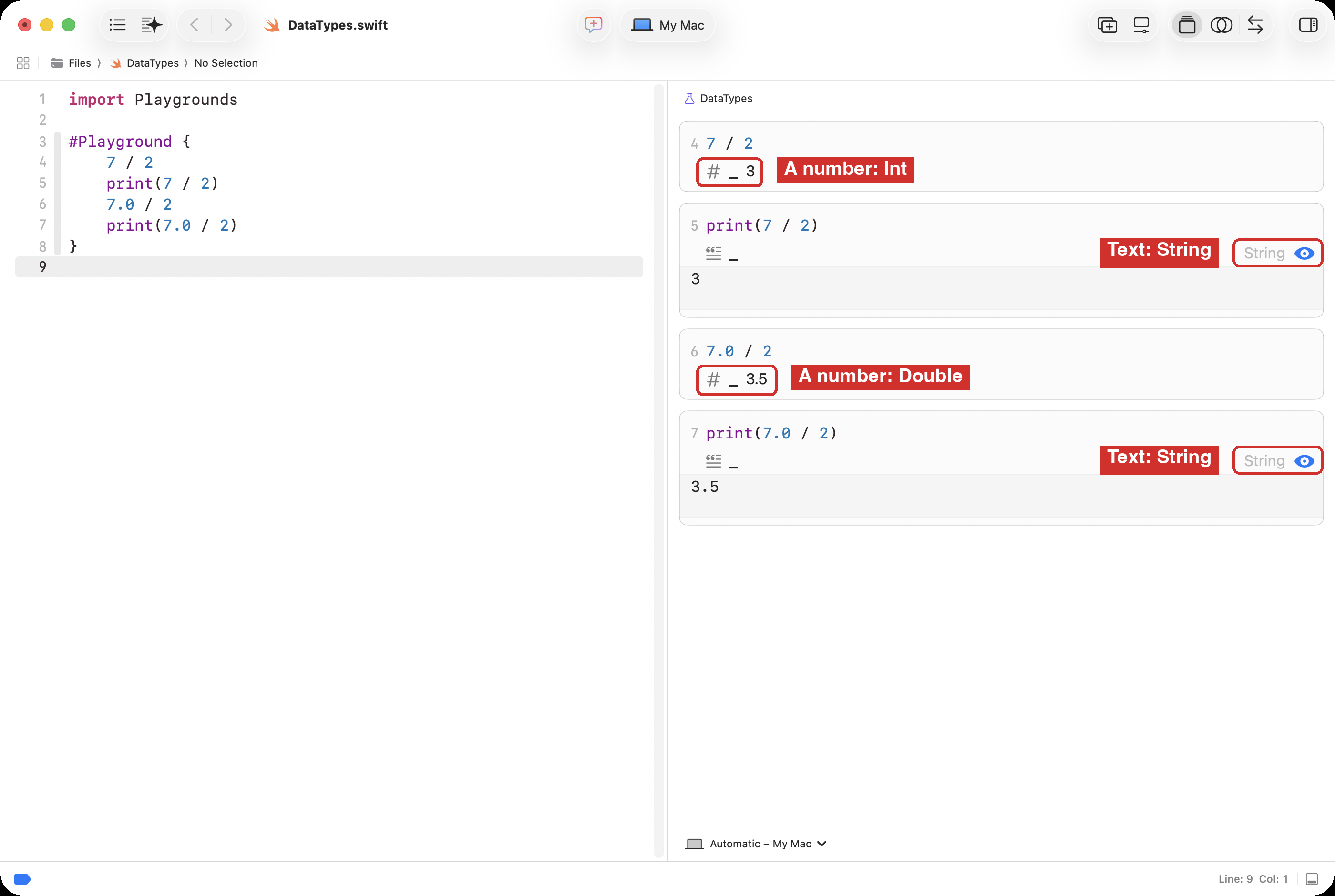
Now add print around two of the lines, so the playground has both versions:
7 / 2print(7 / 2)7.0 / 2print(7.0 / 2)
Look at the two cards for 7 / 2. The bare line shows 3 with the # symbol: a number, an Int. The print line shows 3 as well, but its card is labelled String, and the symbol beside it is the “ for text.
That is what print is for. It takes whatever you give it, turns it into text, and sends that text to the console. The number 3 goes in; the characters 3 come out. The playground is showing you the text that print sent to the console, and text is always a String, whatever went in. That is why every print card says String, even when the number inside was an Int or a Double.
In a playground you rarely need print, because every line already shows its value. In a program with no playground panel, print is the only way to see anything at all, which is why the AP exam’s DISPLAY and Swift’s print matter.
See the type rule
Earlier, under Types, we established that a named value can only ever hold its own type. Now let’s watch Swift enforce that rule. Add one more line at the bottom of your DataTypes playground:
let startingGuess: Int = 50.5
The line gets a red mark, and the playground stops showing results until you fix it. Xcode says:
cannot convert value of type 'Double' to specified type 'Int'
Read that as: “you promised to provide an Int, and 50.5 is a Double”.
The named value, startingGuess, was declared as Int.
So, Swift refuses the Double.
If you change 50.5 to 50 the red mark goes away – because 50 is an integer.
Assignment operators
When writing code, = does not mean “equals”.
In Swift, = is the assignment operator. A line that uses it is an assignment statement, and it means work out the value on the right, then store it in the name on the left. So this line makes sense in code, even though it would be nonsense in math class:
guessCount = guessCount + 1
Read it as: take the value guessCount has now, add 1, and store the answer back in guessCount. Swift has a shorter way to write the same thing, which the Guessing Game uses:
guessCount += 1
A variable holds only the most recent value stored in it. The old value is gone.
Practice
Use your DataTypes playground. For the two sections below, work on paper first, then type an answer into the playground to check it.
Choose a name, a type, and let or var
For each value a game might keep, write one line of Swift: let or var, a good name, its type, and a starting value.
The number of lives a player starts with.
The number of lives the player has left.
The title shown at the top of the screen.
Whether the sound is turned on.
The price of an extra life in the game’s shop, in dollars.
The number of seconds left on a countdown.
Whether the player has found the treasure.
The name of the SF Symbol that shows a heart.
SOLUTION
Your names may differ. What matters is that the name says what it holds, and that let and the type make sense.
let startingLives: Int = 3var livesLeft: Int = 3let gameTitle: String = "Treasure Hunt"var soundIsOn: Bool = truelet extraLifePrice: Double = 0.99var secondsLeft: Int = 60var treasureFound: Bool = falselet heartSymbol: String = "heart.fill"
Lives left, seconds left, the sound, and the treasure all change while you play, so they are variables. The number of lives you start with, the title, the price, and the symbol’s name are set once, so they are constants.
What is the value at the end?
Trace it: write the value of coins after each line.
var coins: Int = 10coins += 5coins = coins * 2coins -= 1
SOLUTION
Line
coins
var coins: Int = 10
10
coins += 5
15
coins = coins * 2
30
coins -= 1
29
At the end, coins is 29.
In your game: a name and a score
Everything we’ve done so far was in the playground.
Now leave that open, but switch to the Guessing Game window in Xcode.
Let’s put a constant and a variable into that game.
When we’re finished: the game will greet the player by name and count the number of games they have won.
A constant. Near the top of GuessingGameView.swift, under highestNumber, add:
// What the game calls the player.let playerName: String = "friend"
It is a let because the name does not change while the game runs.
A variable. With the other @State variables, under // MARK: - Stored properties, add:
    // How many games the player has won since the app started.
    @State var gamesWon: Int = 0
It is a var because it goes up every time the player wins.
Use them. In checkGuess(), find the lines that run when the guess is right. They start with if guess == secretNumber {. Change them so they look like this:
        if guess == secretNumber {
            message = "Yes, \(playerName)! \(secretNumber) is my number."
            messageSymbol = "star.circle.fill"
            messageColor = Color.green
            gameIsOver = true
            gamesWon += 1
Inside a String, \(playerName) means “put the value of playerName here”.
That is how a message mixes fixed text, like Yes, and is my number with whatever a named value like playerName or secretNumber holds.
Show it. Near the bottom of the screen code, inside the HStack you made in Meet SF Symbols, change the line that shows the guess count to (your line sits one level further in, which is fine):
Text("Guesses so far: \(guessCount) Games won: \(gamesWon)")
Run the game. Win twice. Then change "friend" to your own name, and run it again.
Talk to a neighbour: startNewGame() sets guessCount back to 0. Why must startNewGame()not set gamesWon back to 0?
Curriculum connection
A1.1
use constants and variables, including integers, floating points, strings, and Boolean values, correctly in computer programs;
AAP-1.A.1 A variable is an abstraction inside a program that can hold a value. Each variable has associated data storage that represents one value at a time, but that value can be a list or other collection that in turn contains multiple values.
AAP-1.A.2 Using meaningful variable names helps with the readability of program code and understanding of what values are represented by the variables.
AAP-1.A.3 Some programming languages provide types to represent data, which are referenced using variables. These types include numbers, Booleans, lists, and strings.
AAP-1.A.4 Some values are better suited to representation using one type of datum rather than another.