The Guessing Game is an app: a screen and buttons defined using SwiftUI.
Sometimes you just want to try one line of Swift and see what it gives, without dealing with a user interface.
For that, Xcode has a playground: a single file where every line shows its result beside the code, as you type.
Make a playground
-
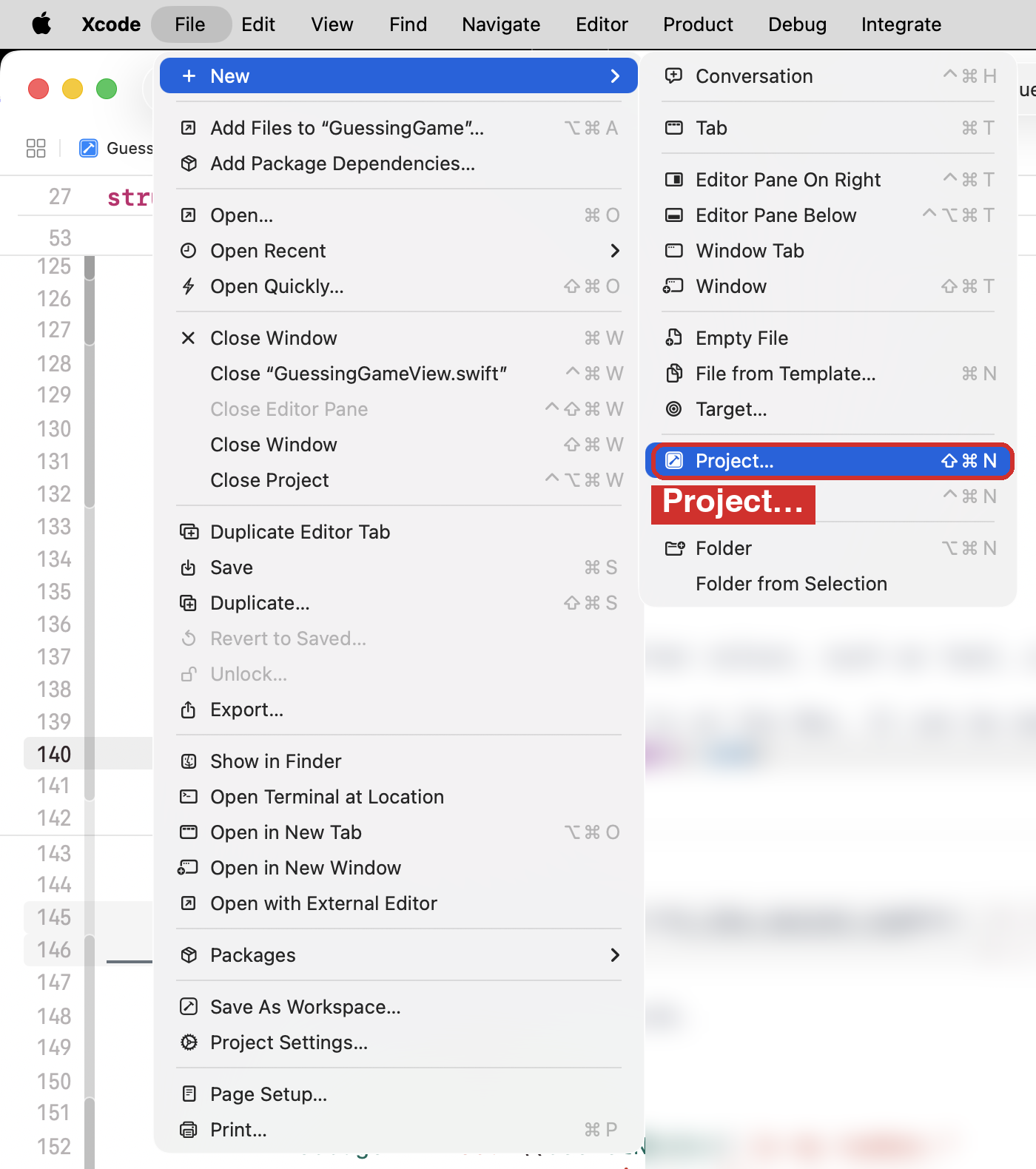
In Xcode, choose File > New > Project…, or press Shift-Command-N.
Using the menus
File is in the menu bar, the strip along the very top of the screen. The menu bar belongs to whichever app is in front, so first check that it says Xcode beside the Apple logo. If it says something else, click an Xcode window to bring Xcode forward.

Click File, move down to New, and a second menu opens beside it.
Project… is in that second menu.
Written out, that path is File > New > Project….
Each > means “then choose this thing next, in the menu that opens”.
-
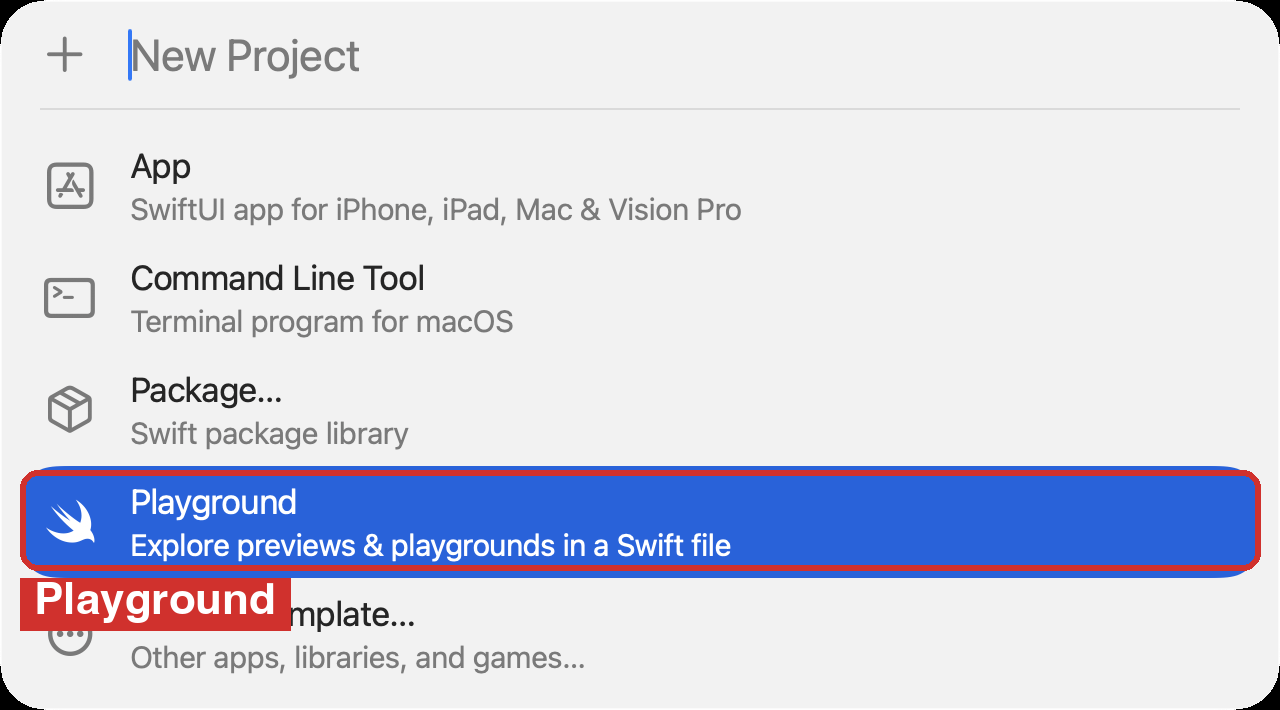
In the list that appears, choose Playground.
-
A new window opens with this already in it:
import Playgrounds

#Playground {
    print("Hello, Playground!")
}
On the right, a card shows what the
printline produced. Nothing was clicked: a playground runs by itself whenever the code changes.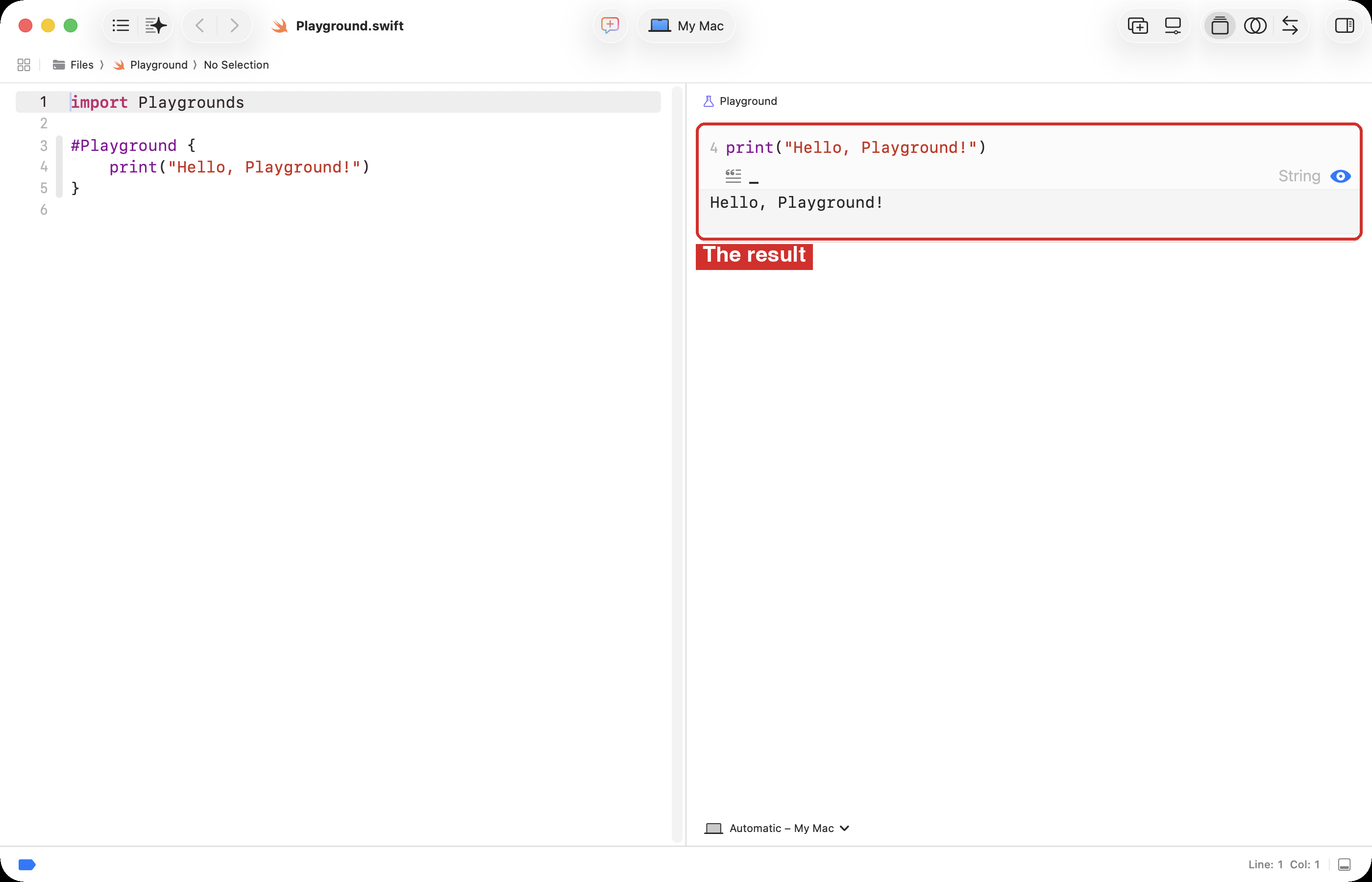
Write your code between the braces of #Playground { }, and leave the two lines around it alone. They are what makes the file a playground.
Make a Playgrounds folder
Your playgrounds need a home of their own, beside your games. Do this once, in the Finder.
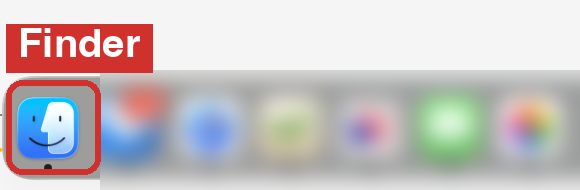
The Finder is the app that shows you the files and folders on your Mac. It is always running. To bring it to the front, click the smiling blue face at the left end of the Dock, the row of icons along the bottom of the screen. If the Dock is hidden, move the mouse to the very bottom of the screen and it slides up.
-
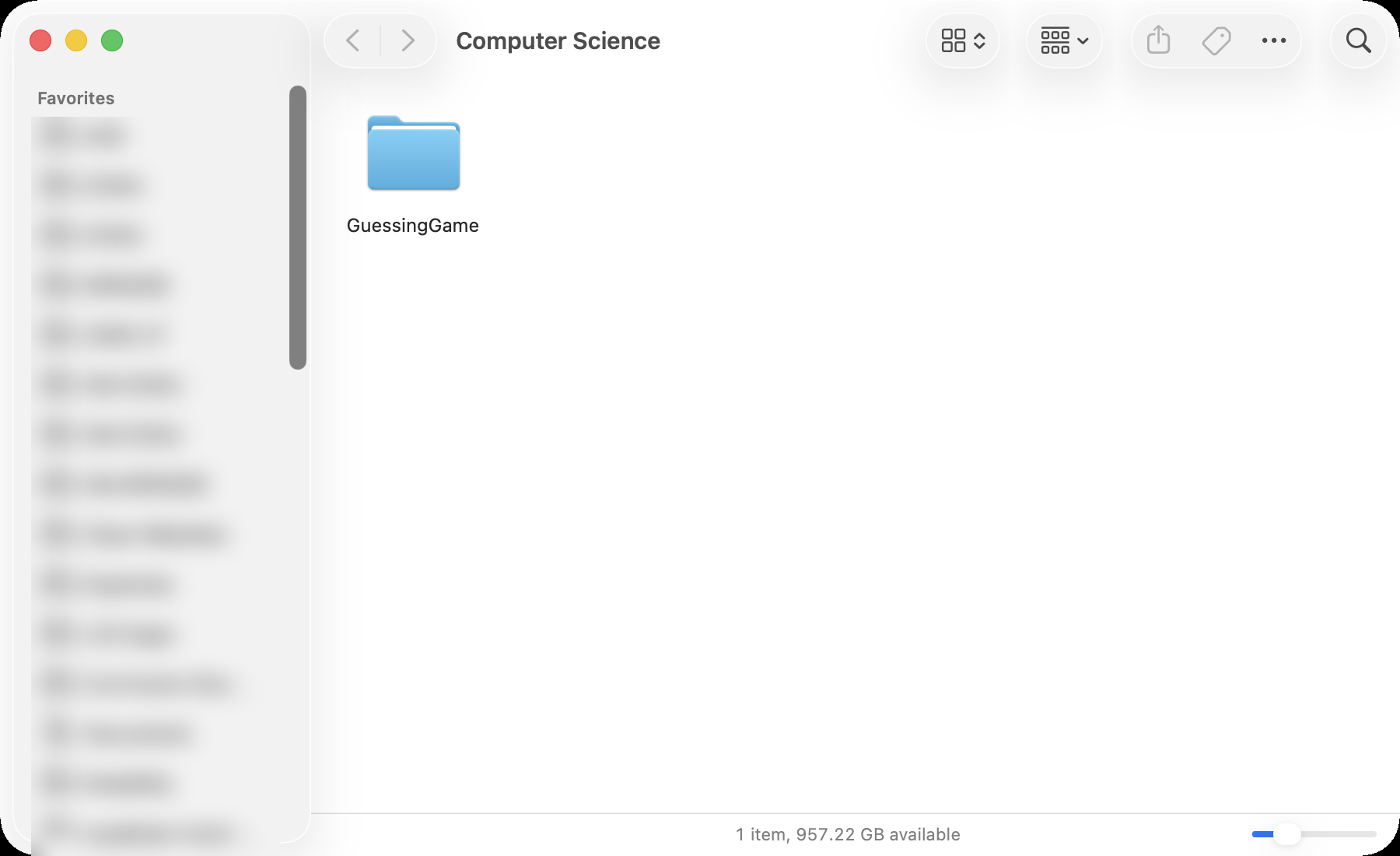
Open your Computer Science folder. It is in the Finder sidebar, under Favourites, if you added it on the first day. If there is no Finder window at all, choose File > New Finder Window first.
-
Choose File > New Folder, or press Shift-Command-N.
Using the menus
File is in the menu bar, the strip along the very top of the screen. The menu bar belongs to whichever app is in front, so first check that it says Finder beside the Apple logo. If it says something else, click the Finder window to bring the Finder forward.

Click File, then New Folder in the menu that opens.
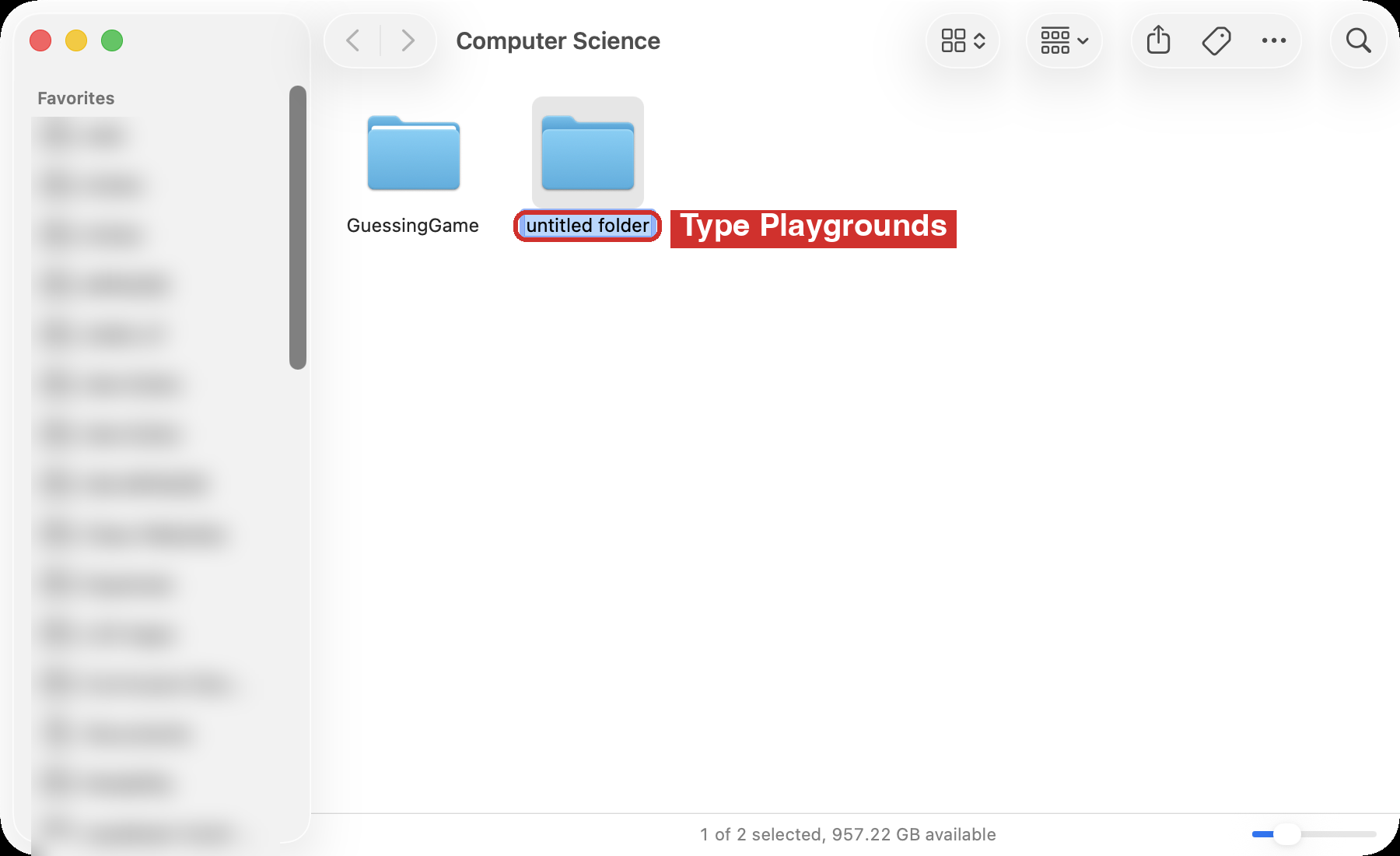
A folder called untitled folder appears with its name selected, ready to be typed over.
-
Type
Playgroundsand press Return.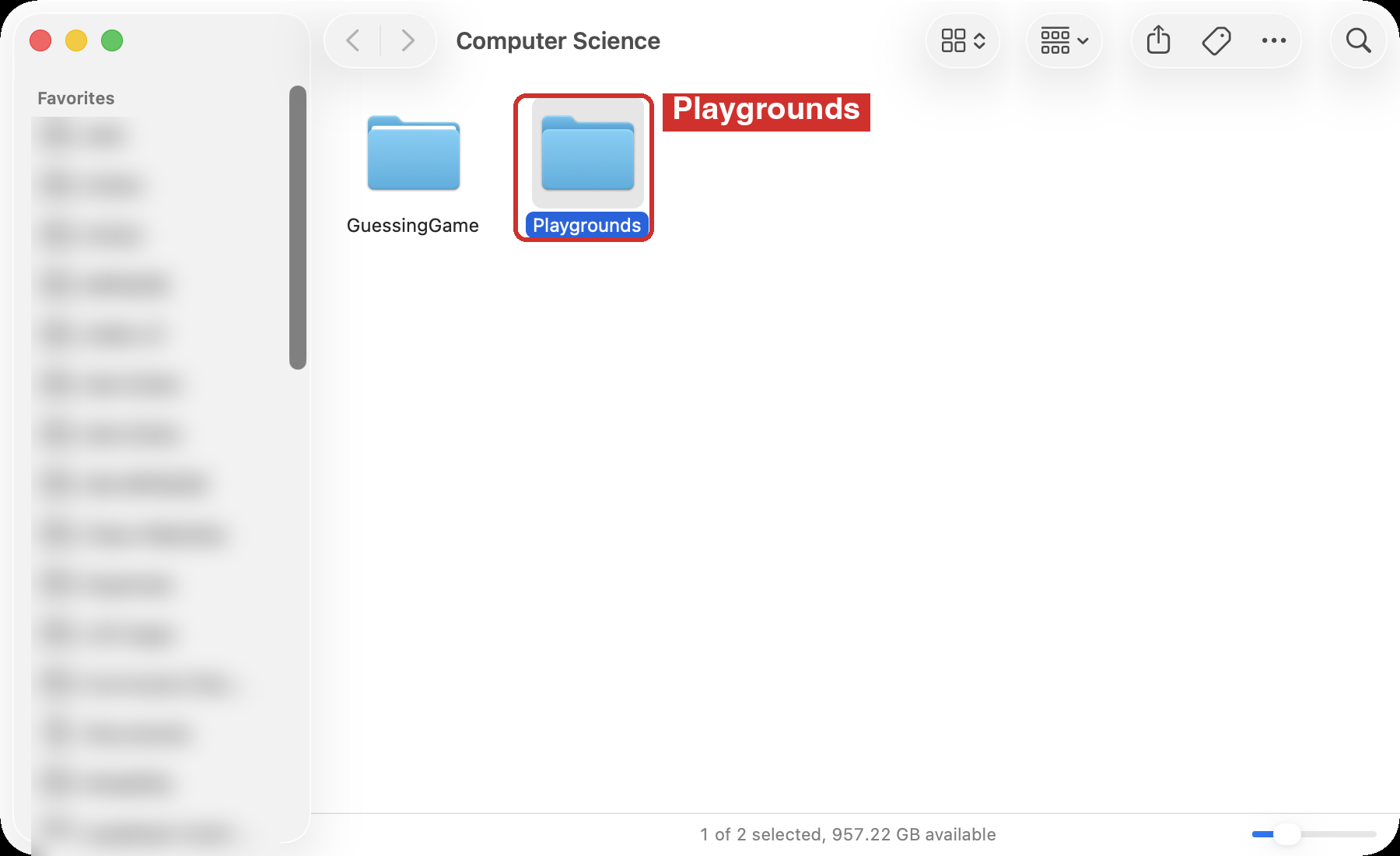
Make it a favourite
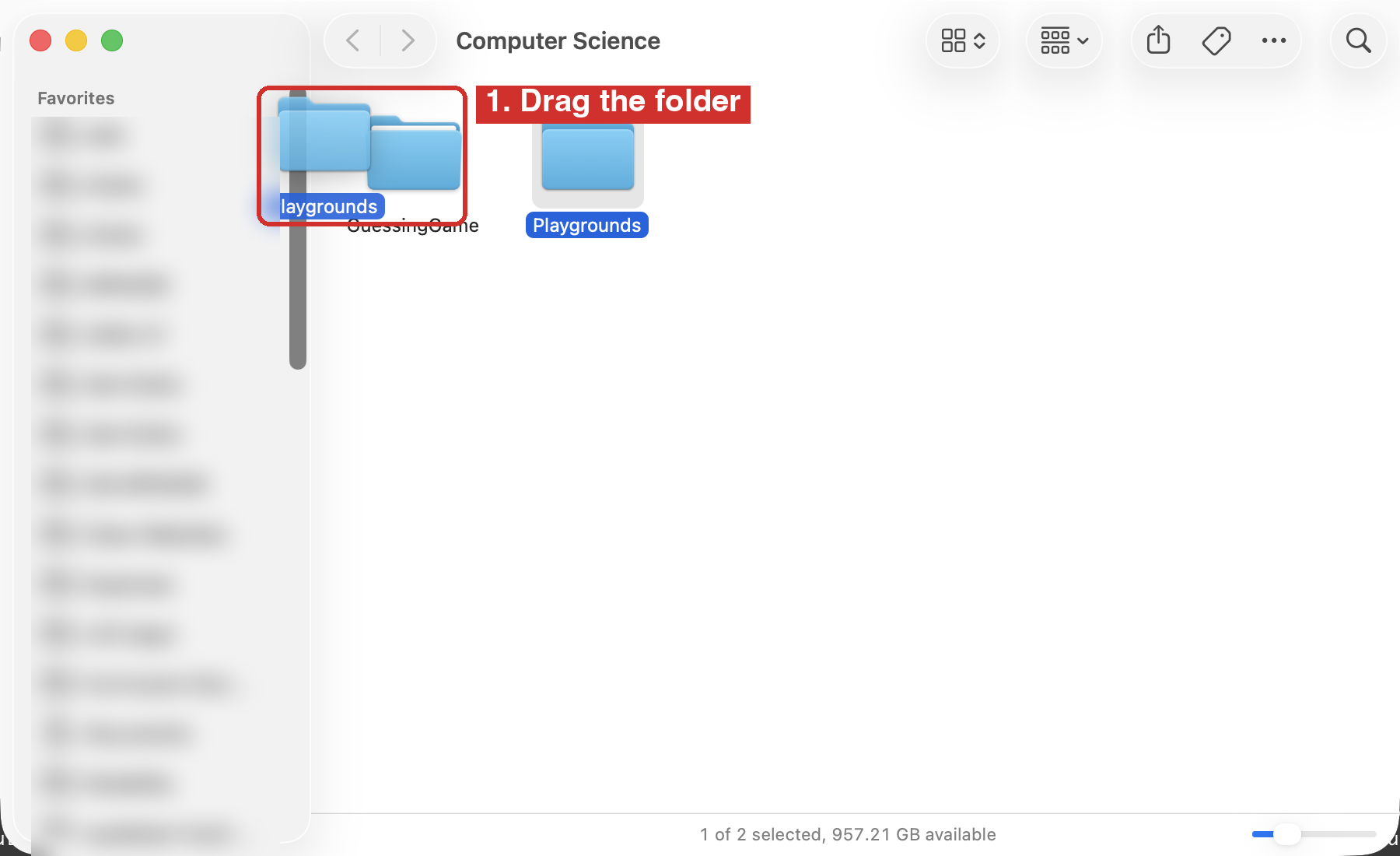
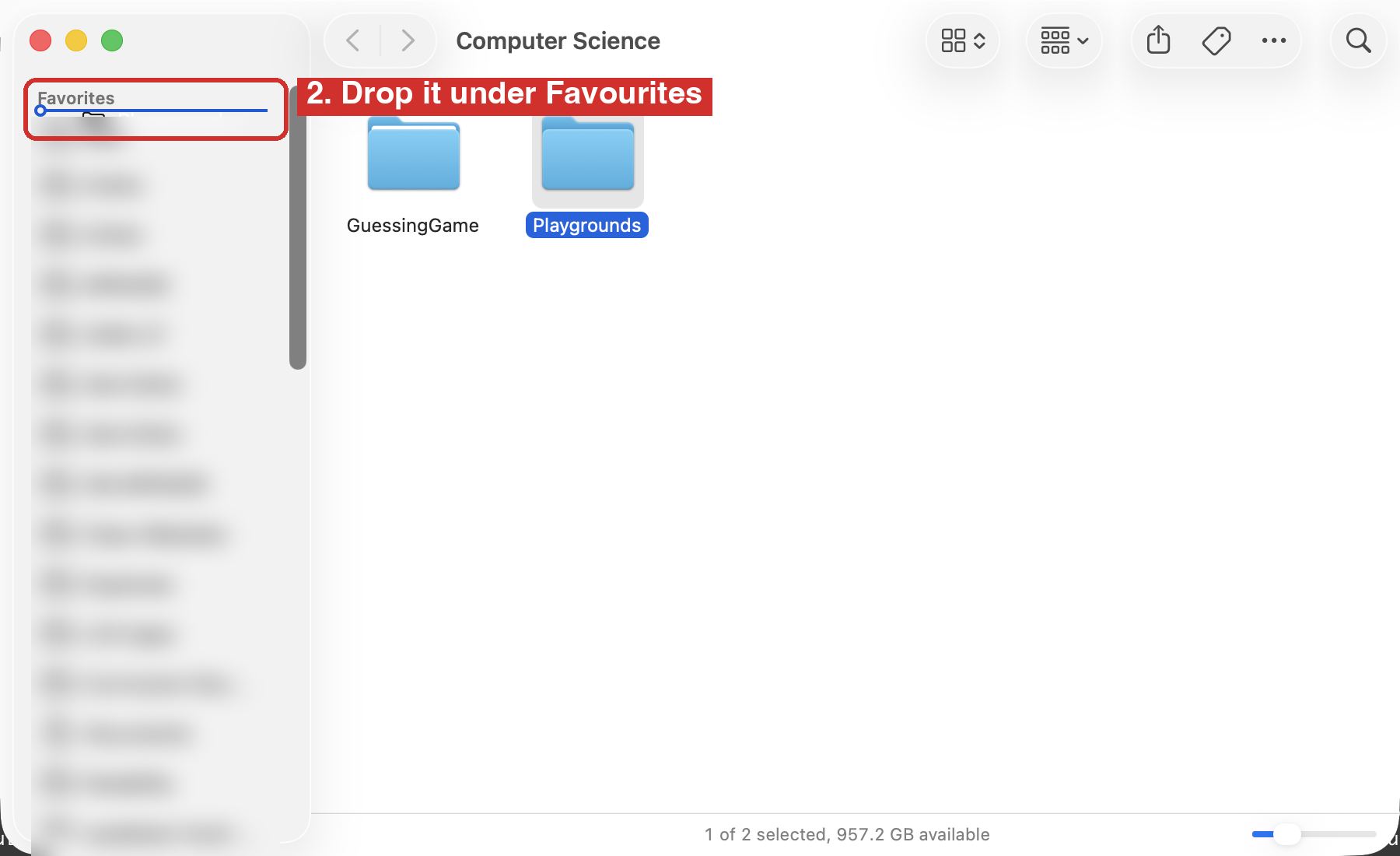
Put the new folder in the Finder sidebar, the way you did with Computer Science on the first day, so it is one click away. Click the Playgrounds folder and, holding the mouse button down, drag it to the left, into the sidebar, until it is over the Favourites list.
A blue line shows where it will go. Let go of the mouse button when the line is under Favourites.
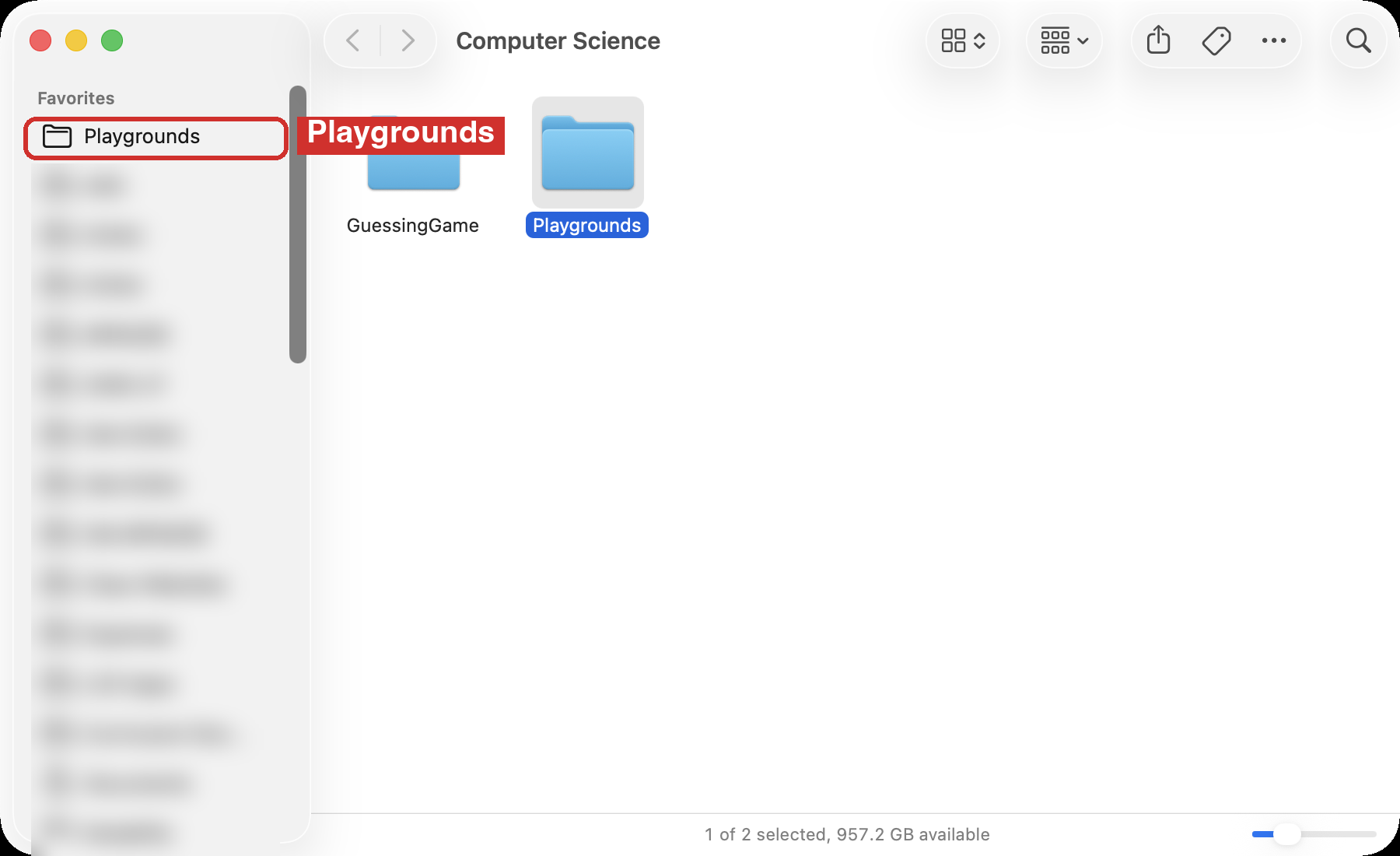
Playgrounds now sits in the sidebar. The folder itself has not moved; the sidebar entry is a shortcut to it.
If you cannot see Favourites at all, choose View > Show Sidebar in the Finder.
Save it
Back in Xcode, press Command-S. A Save sheet drops down from the top of the window.
-
Type a name for the topic: today,
DataTypes. Leave the.swifton the end exactly as it is. A playground saved without it cannot run. -
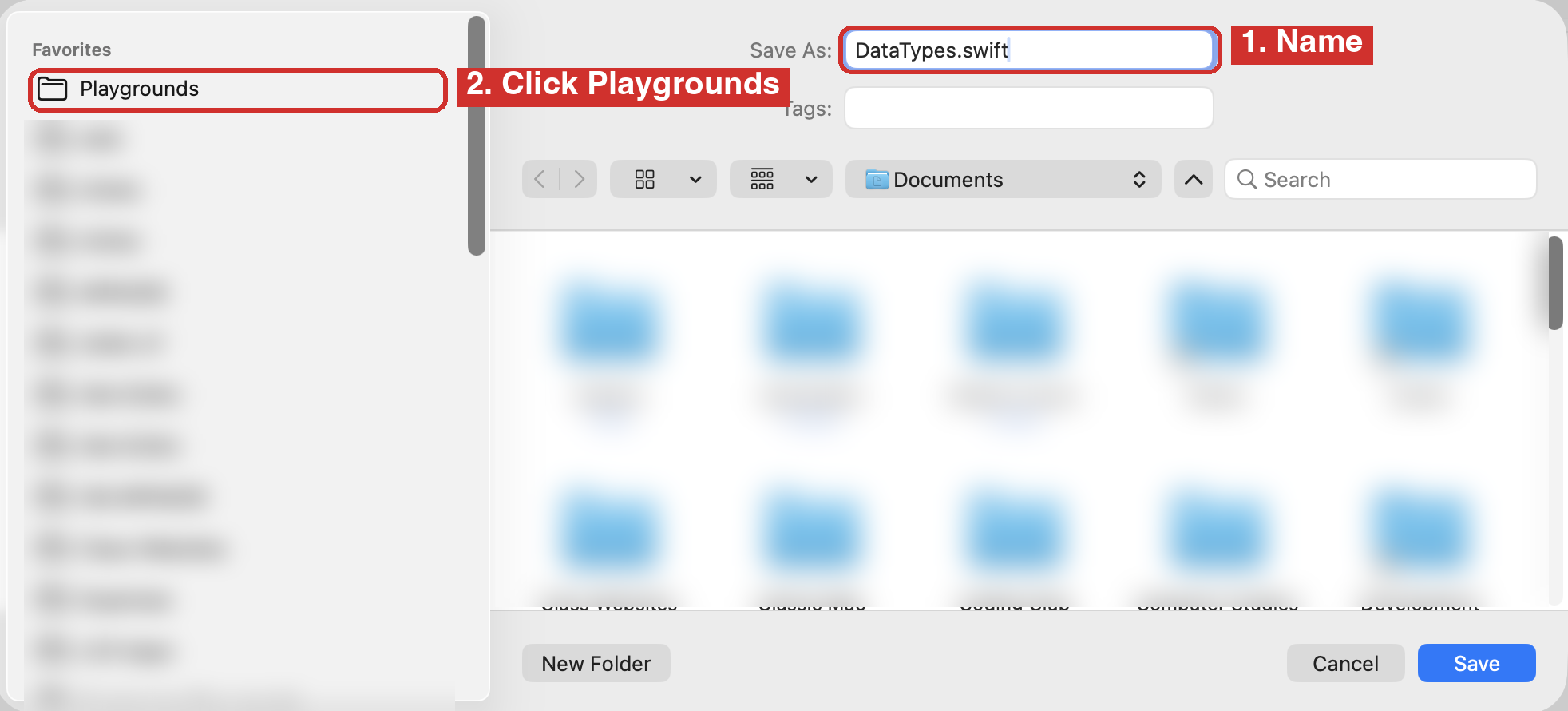
Down the left side of the sheet is the same Favourites list as in the Finder. Click Playgrounds there. The sheet probably opens on some other folder, such as Documents; one click on Playgrounds switches it.
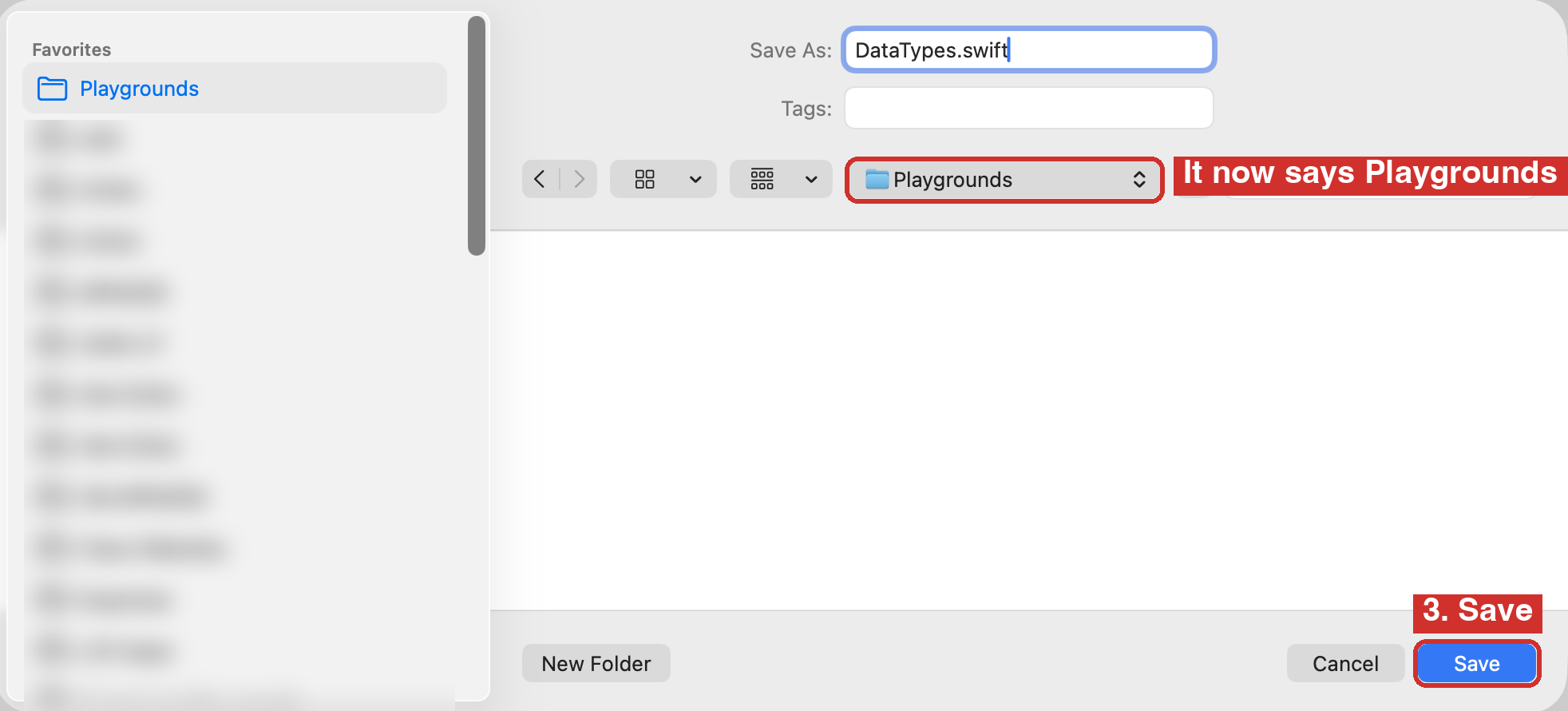
The folder name in the middle of the sheet changes to Playgrounds, and the file area below it goes empty, because the folder has nothing in it yet.
-
Click Save.
No Playgrounds in the list?
Then the folder is not a favourite yet. Go back to Make a Playgrounds folder and drag it into the Finder sidebar. Or, in the Save sheet, open the folder menu in the middle, choose your Computer Science folder, and double-click Playgrounds inside it.
Keep one playground for each topic we meet, and keep them all. Nothing in here ever needs deleting, and there is no GitHub step – playgrounds are generally for trying things out quickly – not for saving many versions over time.
Try it
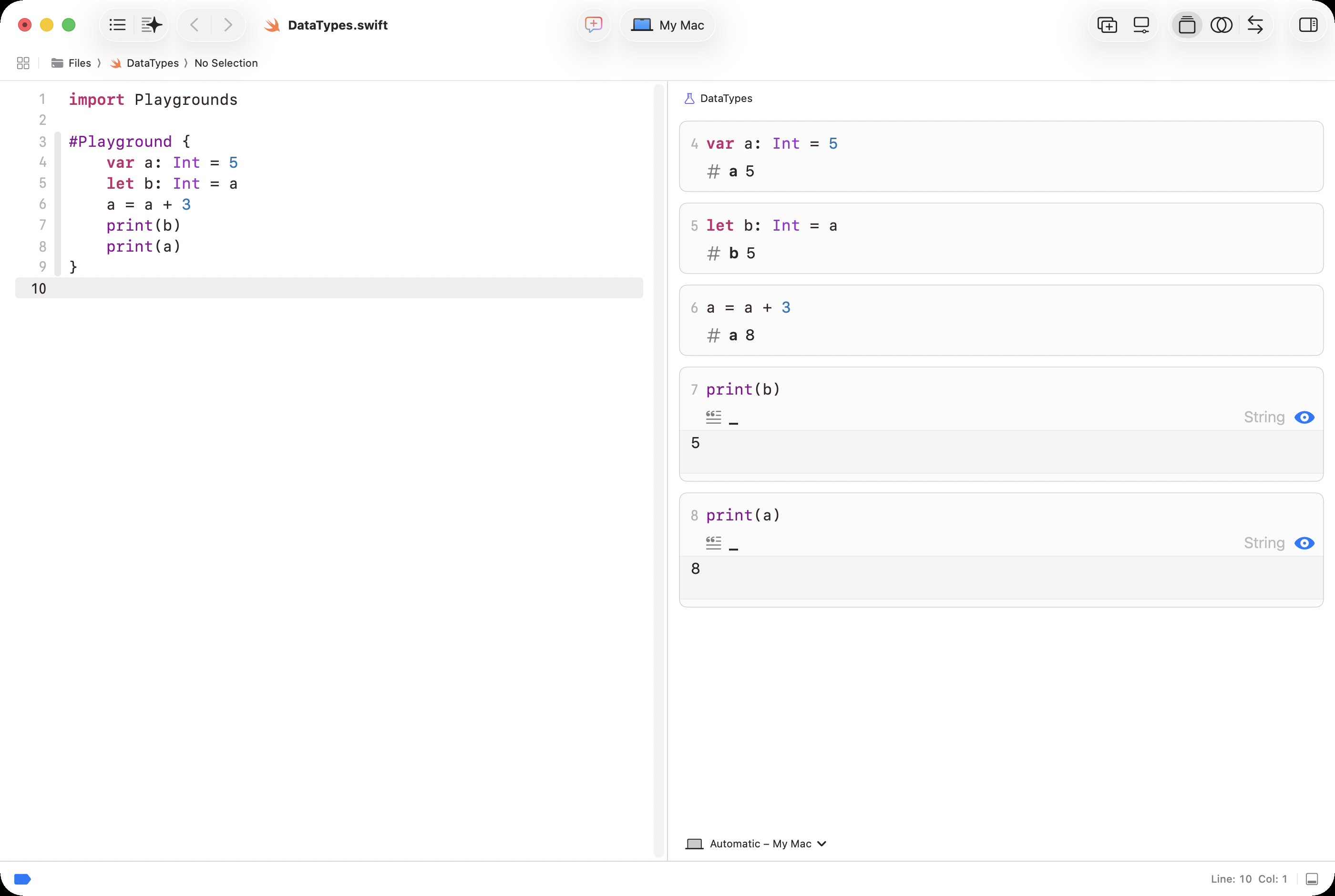
Replace the print line with these five lines. Do not type them: every block of code on this site has a copy button in its top right corner.
var a: Int = 5
let b: Int = a
a = a + 3
print(b)
print(a)- Click the copy button on that block. The five lines are now on your Mac’s clipboard, an invisible holding spot for whatever you copied last.
- In the playground, select the
printline and delete it, so the cursor sits on an empty line between the braces. - Press Command-V to paste.
Copy and paste from the keyboard
Command-C copies whatever is selected, Command-V pastes it where the cursor is, and Command-X cuts it, which is a copy that also removes the original. Hold the Command key, next to the space bar, and tap the letter. These work in every app on the Mac, and you will use them all year, so make them a habit now. The copy button on a code block is a shortcut for selecting the code and pressing Command-C.
Watch the right side as the lines land. Each line gets a card. The var and let lines show the value the name holds. The line a = a + 3 shows a becoming 8, while b stays 5: the trace table from the whiteboards, drawn for you.
Which window am I in?
You now have two Xcode windows: GuessingGame and DataTypes. Check the title at the top before you type. The tutorials you work with today will tell you which window to be in.
Test of success
- You have a Playgrounds folder inside Computer Science, and it is in the Finder sidebar.
- Your DataTypes playground is saved in it, with
.swifton the end. - Each line you type shows its value on the right.
- You can say, in one sentence, what a playground is for and what your game is for.
Curriculum connection
C3.1
demonstrate an understanding of an integrated software development environment and its main components (e.g., source code editor, compiler, debugger);
Link to original
CRD-2.D
Identify output(s) produced by a program.
CRD-2.D.1 Program outputs are any data sent from a program to a device. Program output can come in a variety of forms, such as tactile, audio, visual, or text.
CRD-2.D.2 Program output is usually based on a program’s input or prior state (e.g., internal values).
Link to original